


BIMI Implementation Guide: How to Display Your Logo in Email Inboxes
The complete 2025 guide to enhancing email security and building instant brand recognition with verified logo authentication.
What is BIMI?
Brand Indicators for Message Identification (BIMI) is an email standard that allows your organisation to display a verified logo next to your emails in recipients' inboxes.
Think of it as a digital business card that proves your emails are legitimate. When implemented correctly, your logo appears in supported email clients like Gmail, Yahoo, and others, creating instant brand recognition while boosting security.

Business Benefits: The ROI of BIMI Implementation
As inboxes become increasingly crowded, this visual verification helps your messages stand out while reducing the effectiveness of phishing attempts that target your customers.
Implementing BIMI delivers multiple valuable benefits:
- Brand Recognition: Your logo appears next to emails, helping recipients instantly recognise your brand in crowded inboxes.
- Security: It strengthens email authentication, making phishing emails easier to spot.
- Engagement: Studies suggest open rates could rise by 21-39%, leading to better customer interaction.
- Simplicity: Once set up, BIMI works automatically across all your email platforms, saving time and effort.
BIMI Technical Flow: How It Works Behind the Scenes
When your organisation sends an email with BIMI enabled, here's what happens:
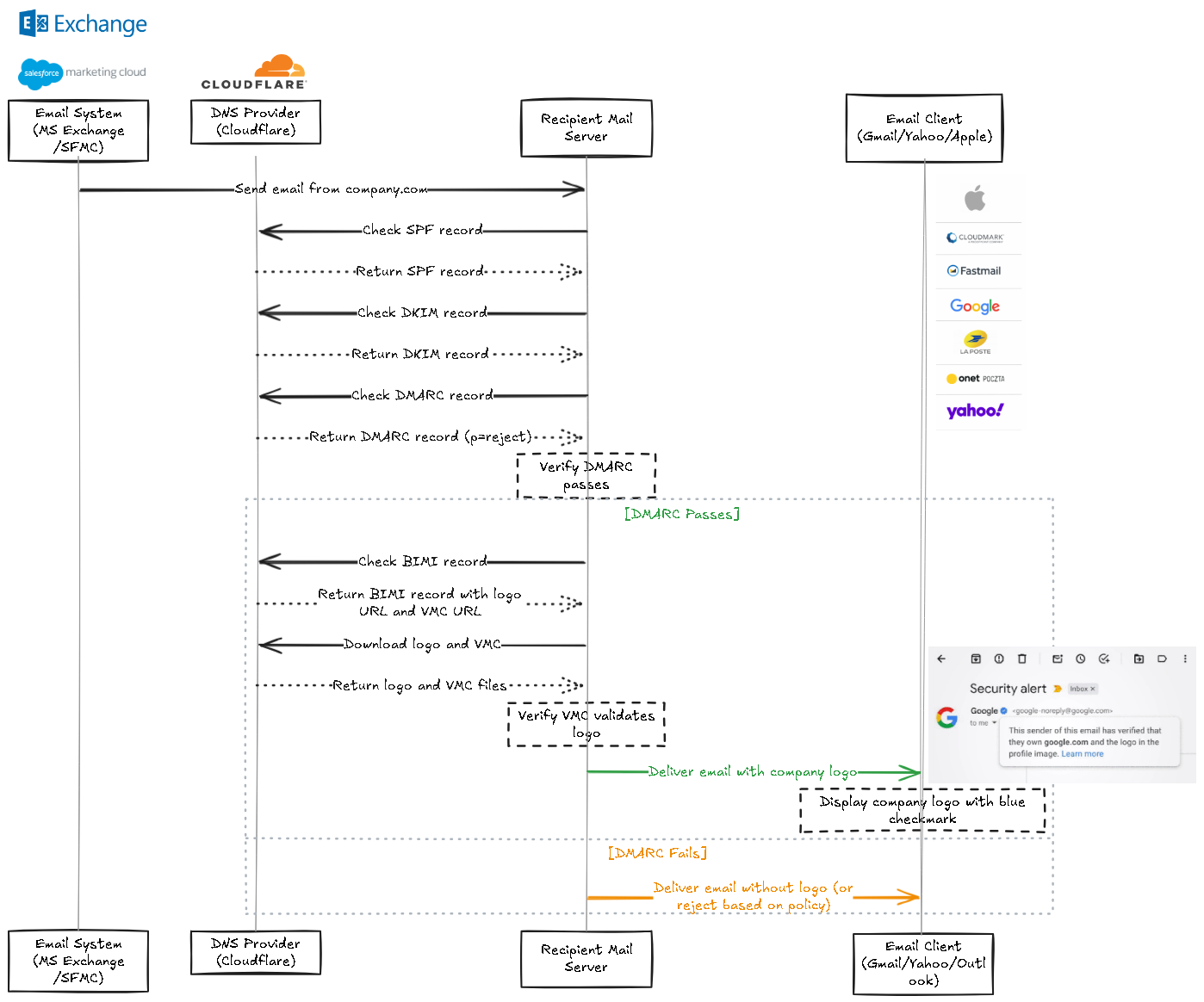
Step 1: Email Dispatch
Your email system (Microsoft Exchange, Salesforce Marketing Cloud, etc.) sends an email from your domain.
email.company.com, support.company.com, and others.Step 2: Authentication Verification
The recipient's mail server verifies three critical security components:
- SPF (Sender Policy Framework): Confirms the sending server is authorised to send email for your domain.
- DKIM (DomainKeys Identified Mail): Validates the cryptographic signature attached to your email.
- DMARC (Domain-based Message Authentication, Reporting & Conformance): Enforces your policy on how to handle emails that fail authentication.
Step 3: BIMI Record Lookup
If authentication passes and your DMARC policy is set to quarantine or reject, the recipient server queries your DNS for the BIMI record.
Step 4: Logo and Certificate Retrieval
The server downloads your:
- SVG Tiny 1.2 format logo
- Verified Mark Certificate (VMC) or Common Mark Certificate (CMC)
Step 5: Certificate Validation
The certificate undergoes validation to verify domain ownership and trademark rights.
Step 6: Logo Display
When validation succeeds, your logo appears alongside your email in the recipient's inbox, often with additional trust indicators like Gmail's blue checkmark (for VMCs).
Pre-Implementation Assessment: Are You Ready for BIMI?
Before diving into implementation, verify you meet these prerequisites:
Readiness Checklist
- [ ] You control and can modify your domain's DNS records
- [ ] You have SPF, DKIM, and DMARC already configured on your domain
- [ ] Your DMARC policy is set to
p=quarantineorp=reject(notp=none) - [ ] You have a trademarked logo or one protected by prior use
- [ ] You have access to create or convert your logo to SVG Tiny 1.2 format
- [ ] You have a secure (HTTPS) publicly accessible web server to host your logo and certificate
Current Email Authentication Status
Use these tools to check your current email authentication setup:
If you're not meeting all the prerequisites, prioritise fixing your email authentication before proceeding with BIMI.
Step-by-Step Implementation Guide
Step 1: Configure and Verify Email Authentication
SPF Configuration
SPF records list all servers authorised to send email on behalf of your domain.
- Identify all systems that send email from your domain (marketing platforms, CRM, internal mail servers)
- Create or update your SPF record to include all these systems
- Example SPF record:
v=spf1 include:_spf.google.com include:sendgrid.net ~all - Publish this TXT record at your domain root in DNS
DKIM Setup
DKIM adds a digital signature to your emails that verifies they haven't been tampered with.
- Generate DKIM key pairs for each email sending system
- Publish the public keys in your DNS as TXT records
- Example DKIM record:
v=DKIM1; k=rsa; p=MIGfMA0GCSqGSIb3DQEBAQUAA4GNADCBiQKBgQC5N3lnvvrQ/0laKS5C7Bbj0lYP... - Configure your email systems to sign outgoing messages with the private keys
DMARC Implementation
DMARC tells receiving mail servers how to handle emails that fail authentication.
- Start with monitoring mode to identify legitimate email sources (
p=none) - Gradually move to quarantine (
p=quarantine) once you've identified all legitimate sources - Finally, advance to reject mode (
p=reject) which is required for BIMI - Example DMARC record:
v=DMARC1; p=reject; rua=mailto:[email protected]; pct=100
Important: For BIMI to work, your DMARC policy must be set to either p=quarantine or p=reject with a percentage (pct=) of 100.
Resources:
- Google Workspace DKIM Setup Guide
- Microsoft 365 DKIM Configuration
- DMARC Guide
- https://learndmarc.com/ (This site has a intuitive learning experience.)
Step 2: Prepare Your Logo
Your logo must meet specific technical requirements:
- Format: SVG Tiny 1.2 (not all SVG features are supported)
- Size: Maximum 32KB file size
- Content: Must be a square image with equal height and width
- Background: Must have a transparent background
- Colour: Limited to RGB colour space (no CMYK)
Logo Conversion Process
- Start with your high-quality logo file (vector format preferred)
- Convert to SVG Tiny 1.2 format using Adobe Illustrator or similar tools
- Optimise the file size to ensure it's under 32KB
- Validate using the BIMI Inspector Tool
- Host on a secure public web server with HTTPS (not HTTP) on the same company domain.
Example of compliant SVG markup:
<svg xmlns="http://www.w3.org/2000/svg" viewBox="0 0 100 100">
  <rect width="100" height="100" rx="15" fill="#0077cc"/>
  <text x="50" y="50" font-family="Arial" font-size="40" text-anchor="middle" fill="white">ABC</text>
</svg>
Common errors to avoid:
- Using unsupported SVG features like filters, animations, or gradients
- Including text without converting to paths
- Exceeding 32KB file size
- Using HTTP instead of HTTPS for hosting
Step 3: Obtain Your Certificate
Time investment: 4-8 weeks (includes trademark verification process)
Understanding Certificate Types
| Feature | Verified Mark Certificate (VMC) | Common Mark Certificate (CMC) |
|---|---|---|
| Requirements | Registered trademark | Common law trademark or prior use |
| Visual indicator | Logo with blue checkmark in Gmail | Logo without checkmark |
| Cost (USD) | ~$1,500 - $2,000/year | ~$500 - $1,000/year |
| Processing time | 3-8 weeks | 2-4 weeks |
| Best for | Larger organisations with registered marks | Small businesses with established branding |
VMC Acquisition Process
- Verify your trademark is registered with a recognised intellectual property office
- Select a certificate provider:
- Submit proof of trademark ownership and domain control
- Complete organisation validation (OV) process
- Receive and download your VMC certificate files
CMC Acquisition Process
- Document your prior use of the mark (advertising, products, website history)
- Select a certificate provider that offers CMC
- Submit evidence of prior use and domain control
- Complete the validation process
- Receive and download your CMC certificate files
Important Note: As of November 2024, Apple no longer trusts Entrust-issued VMCs, affecting visibility for Apple email users. Consider DigiCert for broader compatibility.
Step 4: Create Your BIMI DNS Record
The BIMI record is a TXT record in DNS with a specific format:
v=BIMI1; l=https://company.com/logo.svg; a=https://company.com/certificate.pem;Where:
v=BIMI1: Specifies the BIMI version (always BIMI1 currently)l=: Location of your SVG logo file (must use HTTPS)a=: Location of your certificate file (must use HTTPS)
DNS Configuration Steps
- Access your DNS management portal (GoDaddy, Cloudflare, AWS Route 53, etc.)
- Create a new TXT record with:
- Name/Host:
default._bimi(for organisational domains) ordefault._bimi.subdomain(for subdomains) - Value: Your complete BIMI record string as shown above
- TTL: 3600 seconds (or 1 hour)
- Name/Host:
- Save and publish the record
Example of a complete BIMI DNS record:
default._bimi.company.com. 3600 IN TXT "v=BIMI1; l=https://company.com/bimi-logo.svg; a=https://company.com/bimi-certificate.pem;"
Verification Tools
After creating your DNS record, verify it using:
Testing Your BIMI Implementation
- DNS Propagation Check
- Wait 24-48 hours for DNS changes to fully propagate
- Verify your BIMI record is visible using the tools mentioned above
- Email Authentication Tests
- Send test emails to different email providers (Gmail, Yahoo Mail, etc.)
- Check Gmail's email headers for "Authentication-Results" to confirm SPF, DKIM, and DMARC pass
- Verify your DMARC reports show authentication passing
- Logo Display Verification
- Check if your logo appears in supported email clients:
- Gmail (desktop and mobile)
- Yahoo Mail
- Apple Mail (iOS 16+)
- Others supporting BIMI
- Check if your logo appears in supported email clients:
- Certificate Validation
- Verify certificate details using Qualys SSL Server Test
- Ensure certificate hasn't expired and chains to a trusted root
Expected Results by Email Client
- Gmail: Logo with blue checkmark (VMC) or logo only (CMC)
- Yahoo Mail: Logo display with different positioning
- Apple Mail: Logo display (only with DigiCert VMCs as of Nov 2024)
- Outlook.com: Currently unsupported (check for Microsoft updates)
Troubleshooting Common BIMI Issues
Authentication Problems
| Issue | Solution |
|---|---|
| SPF fails | Check for unauthorised senders; verify SPF record syntax |
| DKIM fails | Ensure private keys match published public keys; check selector names |
| DMARC not enforced | Update policy from p=none to p=quarantine or p=reject |
Logo Issues
| Issue | Solution |
|---|---|
| Non-compliant SVG | Use the BIMI Inspector to identify and fix SVG issues |
| Logo exceeds 32KB | Optimise SVG code; remove unnecessary elements |
| Logo not loading | Verify HTTPS accessibility; check MIME type (image/svg+xml) |
Certificate Problems
| Issue | Solution |
|---|---|
| Certificate expired | Renew your certificate with your provider |
| Certificate not trusted | Switch providers (especially from Entrust to DigiCert for Apple Mail) |
| VMC validation issues | Ensure domain in certificate matches sending domain |
DNS Configuration Errors
| Issue | Solution |
|---|---|
| Incorrect BIMI record format | Verify syntax matches v=BIMI1; l=https://...; a=https://...; |
| Record not found | Confirm correct location: default._bimi.company.com |
| HTTPS URLs missing | Update all URLs to use HTTPS, not HTTP |
Diagnostic Tools:
Current Support and Costs
Email Client Support (As of March 2025)
- Full Support: Gmail, Yahoo Mail, Fastmail
- Partial Support: Apple Mail (requires DigiCert VMC)
- Growing Support: AU, Cloudmark, La Poste, Onet Poczta, GMX
- Future Support: Currently unsupported (check for Microsoft updates)
For updated ESP support, please refer to BIMI Support by Mailbox Providers.
Maintaining Your BIMI Implementation
Ongoing Maintenance Tasks
- Certificate Renewal: Mark your calendar to renew 30 days before expiration
- DMARC Monitoring: Regularly review reports for authentication issues
- Logo Updates: When rebranding, update your SVG file and test again
- Client Support Tracking: Stay updated on new email clients supporting BIMI
Future-Proofing Your Implementation
- Monitor BIMI Standards: Visit BIMI Group for standard updates
- Review Certificate Authority Changes: Be aware of trust changes (like Apple's Entrust decision)
- Maintain Trademark Registrations: Ensure your trademarks remain active
Conclusion: Taking Action
Start by assessing your current email authentication setup. If you're already using SPF, DKIM, and DMARC with enforcement policies, you're closer to BIMI-ready status than you might think. Even if you're not, the security benefits of proper email authentication make this a worthwhile investment beyond just logo display.